
Ability To Exclude Content For Build Widgets
Within the Build Widget Content Selector is set to an automatic pull such as pulling content based on ContentTypes and Taxonomy, an additional content search box is added to prohibit selected content from being used in this widget (Applies to automatic pulls and ignored if content is manually chosen).
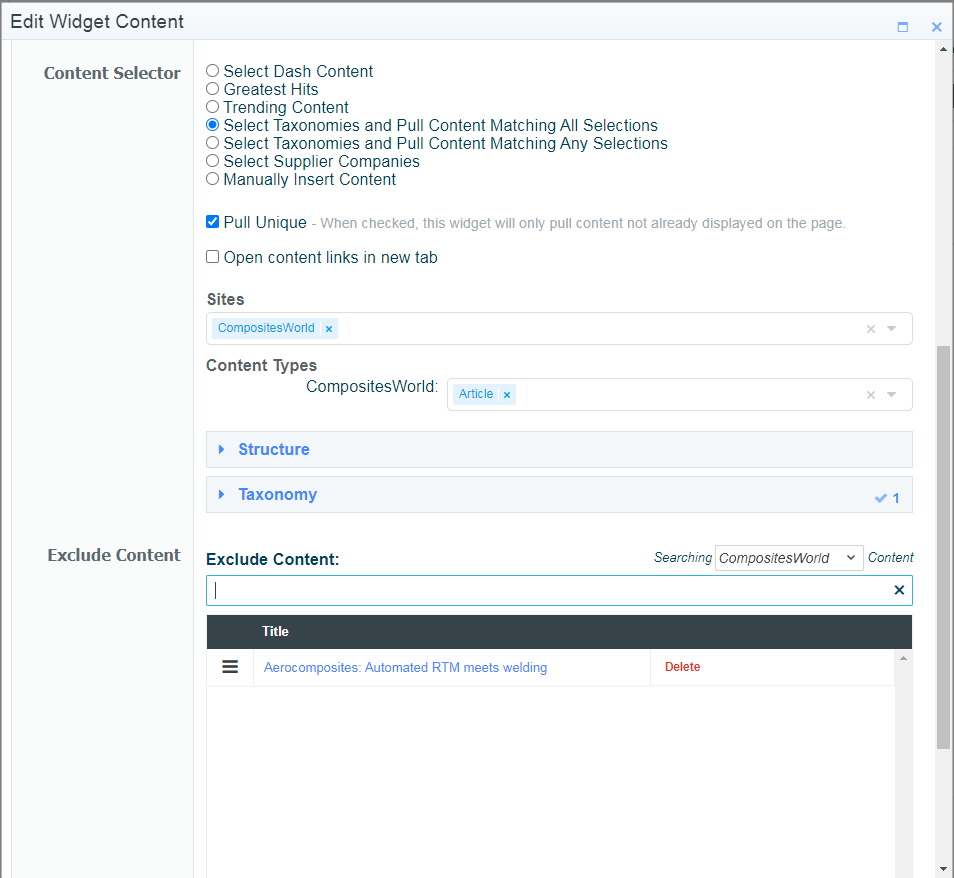
The above example is pulling all CW RTM articles, but "Aerocomposites: Automated RTM meets welding" links to the same KC so its excluded from the widget.
Allow Multiple Sites/ContentTypes to be selected when pulling content via Taxonomy in Build
When Selecting Content via Taxonomy within a Build Widget, you are now able to select multiple sites and contentTypes. ContentTypes will be displayed when the given site is added to the sites list. It is assumed that no selections is the same as having everything selected, and selections will narrow the results.
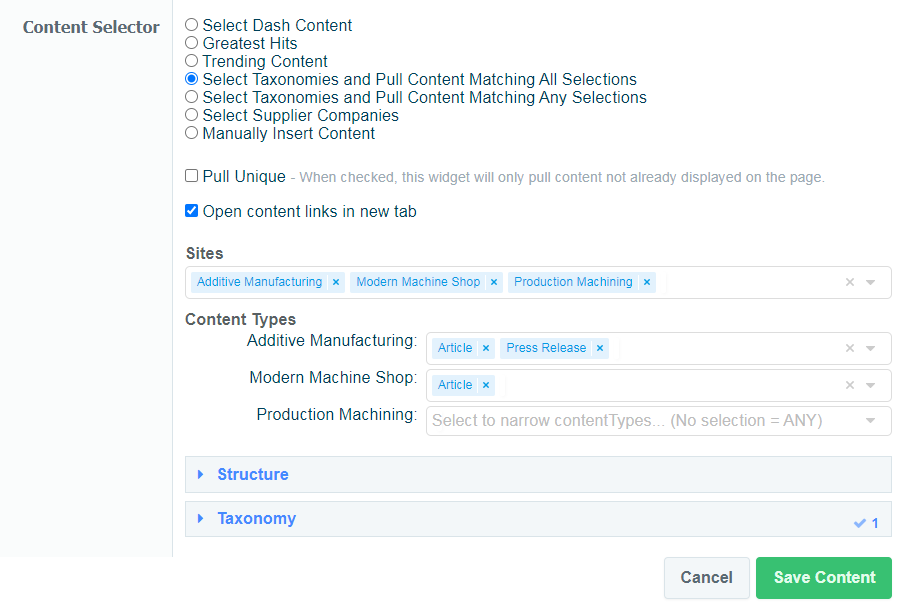
In the Above Example, we are pulling content tagged to Big G Topics -> Automation. Due to my sites/contentType selections, this will pull Articles and Press Releases from AM, Articles for MMS, and any content for PM.
Knowledge Center Expert Email CCs
 Tom Gobich
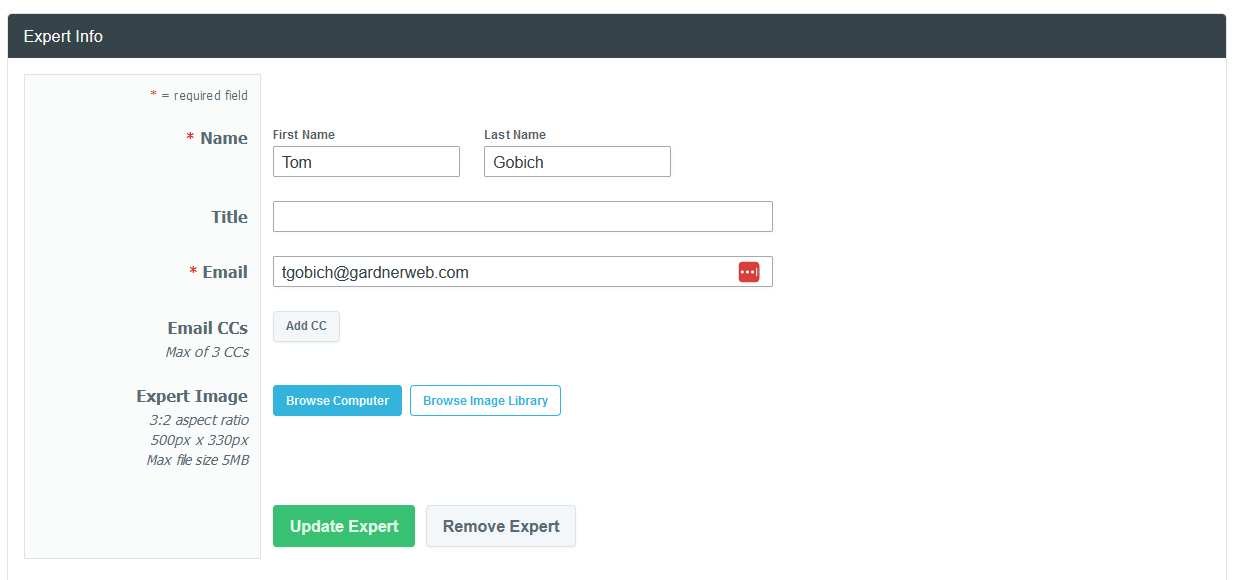
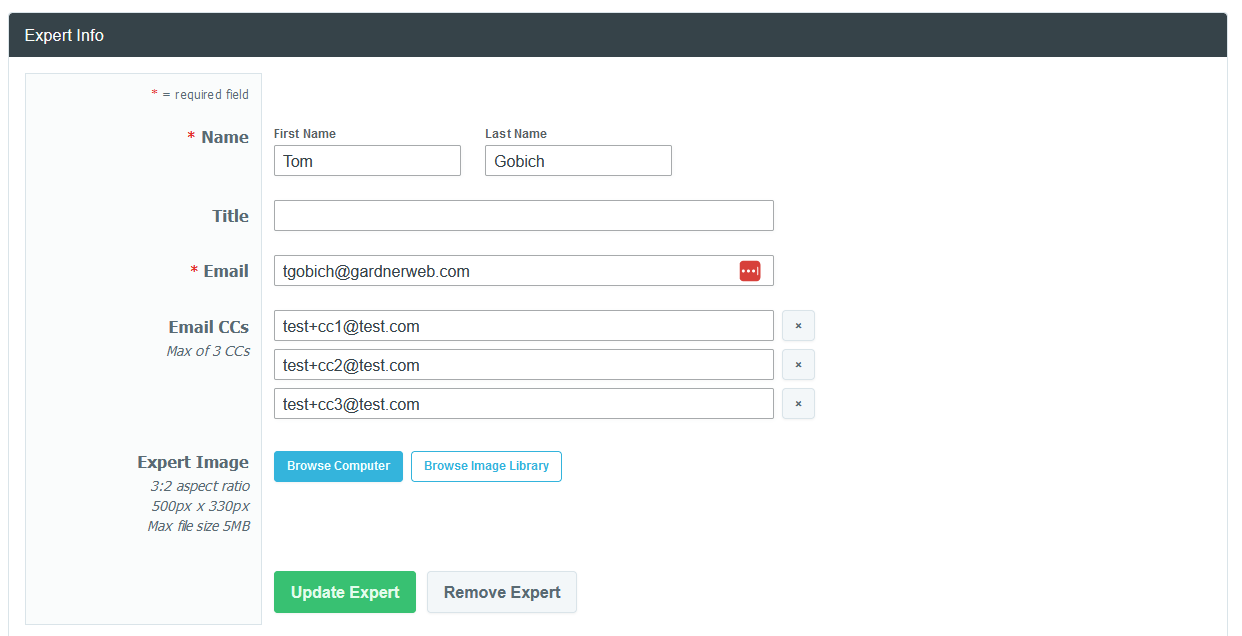
You can now specify up to three CCs on a Knowledge Center Expert within Build. These CCs will be assigned as CCs on any outgoing expert email submitted via the expert form within the Knowledge Center.
Build - Navigation Enhancement & Cache Bug Fix
Tom Gobich
Cache Bug Fix
I believe the origins of the cache bug that's been impacting some Build updates has finally been found and fixed. The bug occasionally occurred when making changes to an already cached version of a Build site (meaning it's been viewed). The change would attempt to clear out all the required cached items, but when this error happens, one of the template-level caches gets excluded leaving it with outdated information which results in an error screen.
I believe I've sourced this bug back to an alteration I made to expand Build functionality for Grow which resulted in Widget Clipboard items getting included in template cache data. This itself didn't cause the error, however, clipboard items belong to the page and not any one template, so when one template was changed, the clipboard widgets would shift but still exist in the cache of other template items, which is what ultimately led to the error.
This is now being scoped specifically to Grow, and will no longer impact the other sites. In addition to this change, I've also gone through and added additional cache clearings for the template-level Microsite caches.
Navigation Enhancement
A structural enhancement has gone out for Microsites containing a navigation bar on desktop devices. The navigation bar now spans the full height of the page and will stick to the top of the page as you scroll. To allow space for this, strip content will now start directly to the right of the navigation bar and span the remaining width.
This change was primarily made to remedy a structural issue in cases where the navigation was taller than the Template 1 content. In these cases, the navigation would cause empty space between Template 1 and Template 2 or Template 1 and Strip 1 since previously the navigation was inserted along with Template 1's content.
GardnerWeb, Gardner Intelligence, and Microsites not containing a navigation have not been impacted and will display the same as they did prior to this release.
Build Manual Company Website Text
Tom Gobich
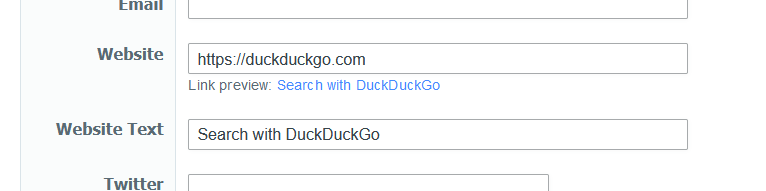
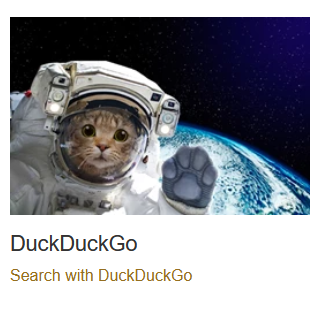
A new field has been added when entering manual companies into a Build Microsite, called "Website Text". When provided, this text will be the displayed value for the "Website" link provided.
Essentially, this will allow you to specify the call to action text for a company's website link.
Bulk Upload & File Size Limits
Tom Gobich
The bulk upload behavior on the Content Creator and Media Library has been altered. Previously, when you selected multiple images to upload all of the selected images would be grouped and sent up in a single request to upload. We've noticed this can result in an error due to the single request's size being too large if too many or too large of images are uploaded.
As a remedy the bulk upload will now upload each selected file individually. The only change you should notice here is that multiple files will no longer be grouped but rather listed individually.
Additionally, we've also added validation onto our uploads, including the bulk upload, to restrict image sizes to 5MB or less. We've noticed some images between 15MB to 30MB being uploaded, which is very large for a single image upload.
FAQ List Added to 5 Story Vertical Widget
Tom Gobich
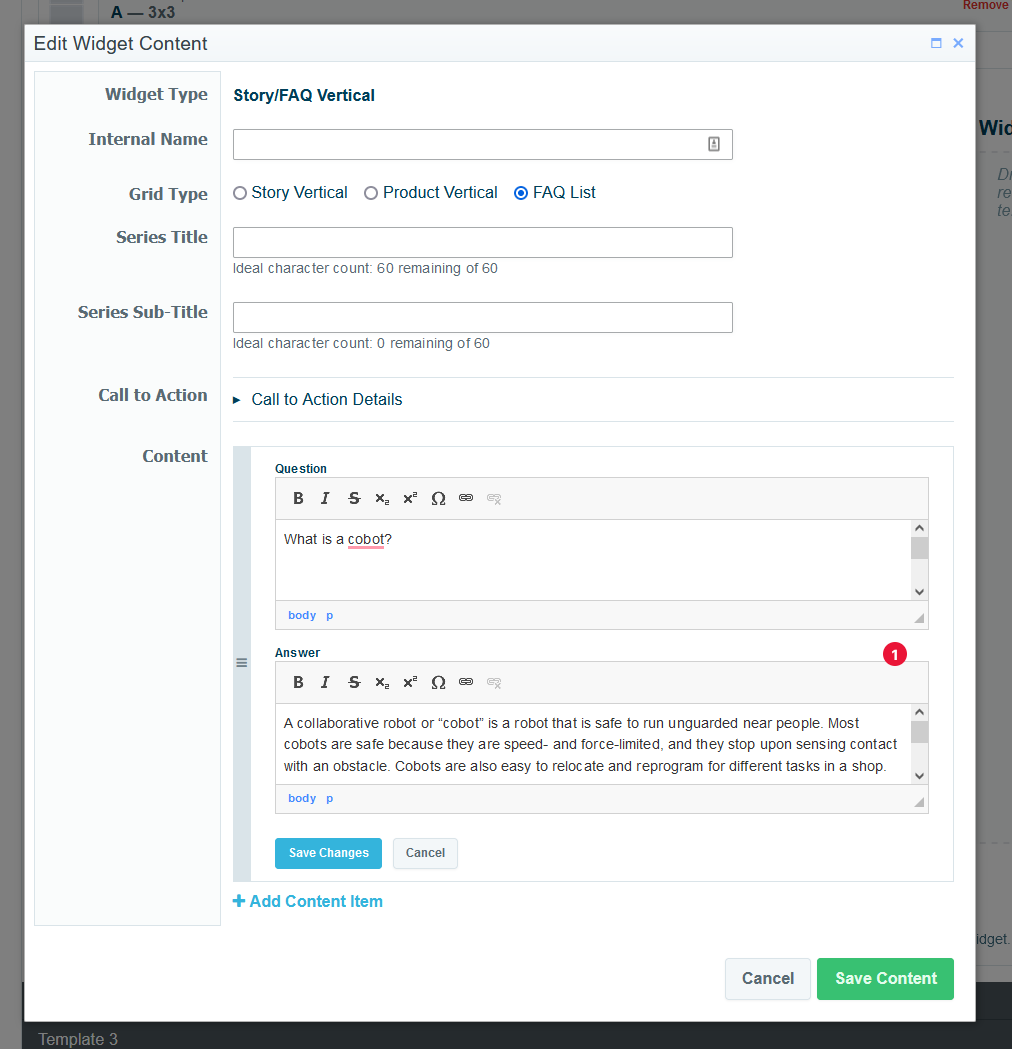
A new Grid Type option has been added to the 5 Story Vertical widget within Build, called FAQ List. With this new Grid Type you can now define both FAQ Schema (for google) and easily list FAQ items on the (for the user) in one go as FAQ List items will be automatically added to the page's FAQ Schema.
The FAQ List Grid Type is limited to manually defining a list of questions and answers.
Additionally, the 5 Story Vertical widget has been renamed to Story/FAQ Vertical to better indicate that you can add FAQ items using this widget.
File System Links, File System Images, & Url Defense Links
Tom Gobich
File System Links & Images
File system urls begin with `file://`. These urls are paths to locations on your computer and are not accessible to anyone but you. Recently, we've seen instances where these file system urls have been used for both links and images. For images, we believe this is happening from copy/pasting or dragging & dropping images from the file system or Outlook emails directly into the content editor. For links, we believe the same thing is happening but with file system & Outlook locations.
In an attempt to prevent links and images from being inserted into content in the future we're adding checks for such urls when copying & pasting and dragging & dropping into the content editor.
With this now in place, when links are dragged & dropped or copy/pasted into the content editor and they go to a file system url, the link will be removed and just the text for the link will remain. Images on the other hand containing a file system url will be completely removed, as there's nothing usable to keep.
When this does happen, warnings will be displayed in the top-right corner of your screen. An example of one of these warnings is below. Checks for file system links have been added to the content creator and build.
Url Defense Links
In addition to file system links, we've also noticed Proofpoint Url Defense links have been getting used as well. Links received within emails are routed through Proofpoint so that Proofpoint can verify the url is safe before it reaches you in your inbox. In some cases, these have been entered for links and advertisements by copy & pasting links from emails. Below is what one of these links looks like.
https://urldefense.com/v3/__https://mastip.com/ __;!!KeUdynatPK5p!_1244v...
When clicked, these do take the user to the correct final destination, however, Google Amp considers these links invalid. Additionally, these links may expire after some time and stop working.
To prevent either of these situations, we've added a link check for these url defense links. When one of these links is entered, we'll strip out the Proofpoint Url Defense portion and replace it with the underlying link. When this happens, you'll be notified by a warning in the top-right corner of your screen. Please verify the link's correctness when this does occur.
This check has been added to the content creator, build, and the ad create/update form.
Dash Image Library Search Bar
The Image Library Search Bar will now be reset to an empty state when opening/re-opening the Image Library. The Search Bar will also now have a blue background color when the Image Library is filtering on the search Bar. These changes were added to hopefully solve an issue where the image library looks empty after inserting a few images, which I believe was caused by unintentional filtering.
The below pages were impacted by this bug, though it was most prominent on the content creator. The bug has now also been fixed on each of the below pages.
- Content creator
- Event editor
- Issue editor
- Build editor
- Link editor
- Zone editor
Dash Image Library Select/Insert Bug Fixed
Tom Gobich
A bug impacting performance and the ability to insert images into the content body within the content editor has now been fixed. This fix also resolves the issue where the image caption was getting applied numerous times.
The issue stemmed from a new "change" handler getting bound to the Image Library every time it opened. This bug has been around for a while and copy/pasted throughout Dash but only recently began manifesting itself when a new feature was introduced to save and load alt text, caption, and other image information as this slightly slowed down the "change" handler's completion time.
The below pages were impacted by this bug, though it was most prominent on the content creator. The bug has now also been fixed on each of the below pages.
- Content creator
- Event editor
- Issue editor
- Build editor
- Link editor
-
Zone editor
Build Bust Cache
Tom Gobich
If you ever run into a jam and your page is incorrectly loading outdated information or even stuck on an error, you can now try busting the page's cache directly from Build. This is a new option added onto the page's context menu within the Microsite's edit page.
Build Ad Shuffle & Positioning
Tom Gobich
Ad Shuffle
A new flag has been added underneath the ad collection field within Build to turn on/off the shuffling of ads. This new flag has been defaulted to on (checked) for all preexisting microsites since this was the default behavior prior to the addition of this flag.
For example, in the above screenshot, the "shuffle ad order" checkbox is unchecked, so the ads will pull and display in the order they're listed within the ad collection.
Ad Positioning
I've also fixed an issue related to ad positioning. We have a script that checks whether or not an advertisement will fit next to a microsite's template. If it doesn't the script will move the ad down to the next template to prevent adding whitespace to the template's content.
Prior to today this script was using the advertisement's native image size instead of the size the image is displayed at when determining if an ad would fit. When the ad's native size was big enough, this was causing the ad to be moved to the next template in some cases where it didn't need to be. This script is now using the image's display dimensions instead of the native dimension's so this should no longer be happening.
Photo Credit
Tom Gobich
Starting today, when you add a photo credit onto an image used with the WYSIWYG body copy, that photo credit value, alt text, and caption will be stored within the database. If you then select that same photo from the Image Library, the previously used photo credit, alt text, and caption will auto-populate into the Add Image fields.
When an image has the photo credit populated from the last usage, a blue alert will be displayed just underneath the image preview. If you change the photo credit, alt text, or caption for this usage the new values will be stored for the next time the image is used. If you remove the auto-populated photo credit value completely, the previous photo credit will remain intact for the next usage.
Also, a fix has been applied when the WYSIWYG editor is in fullscreen. Previously you had to move the modal upwards to reach the "Insert Image" button, even with scrolling inside the modal. Now, when you select an image the modal will recenter itself, making the max-height applied to the editor more useful and allowing the Insert Image button to be reached without having to move the modal upwards.
Build & Content Marketing Dashboard Strip Content Shuffle
Tom Gobich
A new shuffle field has been added to the Photo Series and Color Series strips both within Build and the Content Marketing Dashboard. When "Shuffle Content" is checked, the order the content is pulled will be shuffled on each load. So, when you refresh the page an item that was appearing in slot 1 may move to slot 2 or 3 since the order will be shuffled. When unchecked, the order will remain as you've defined it.
Things to note...
- When a taxonomy pull is selected on the "Content Selector" the shuffle setting will be ignored for performance reasons.
- When "Manually Insert Content" is selected, clipboard items will not be included in the shuffle.
- Within Build, strips will default with shuffle set to off.
-
Within the Content Marketing Dashboard, strips will default with shuffle set to on. However, all currently existing strips have been defaulted to off.
Latest Issue Strip Is Now Available
Tom Gobich
A Latest Issue strip has been added to both Build and the Content Marketing Dashboard. This widget accepts a title, title logo/icon, background image, property selection, and link behavior.
If you provide a background image, the image will be displayed similar to how it's displayed with the photo series strip. If a background image is not provided it will display the same as a color series strip.
Similar to the latest issues carousel, you can select a single property to pull the issues from or you can pull from all properties. When pulling from a single property the latest four issues will be pulled. When pulling from all properties, a carousel of the latest issue for each property will be displayed.
As for the link behavior, you can either select not to link, link to the displayed issue's digital edition, or link to the site's article page.
The above is how it displays when selected via the Content Marketing Dashboard.
Above is how it's displayed within Build.
Build, Grouping Edited Images
Tom Gobich
Edited Image Placement
When editing images in Build in the past the edited image used to save directly into the same folder as the original image. Now, when editing images, if you apply a crop transform to the image the edited image will now be placed inside a sub-folder named after the cropped aspect ratio.
For example, if I upload a 16:9 image to my Microsite, example-microsite, and crop it to fit a 3:2 widget, the new altered 3:2 image will be placed inside a folder called 3x2 at /brand/PM/build/example-microsite/3x2. (x is used in place of : because : isn't url-safe).
Default Widget Image Library Folder
If a Microsite has a sub-folder named after the aspect ratio the widget supports, for example 3x2 for a 3:2 aspect ratio, the widget's "Browse Image Library" will automatically open within that aspect ratio's folder. If the Microsite doesn't have a folder yet for the expected aspect ratio, then it'll open as it did previously inside the Microsites folder.
Alias Is Now Required To Create A Microsite
To aid with the behaviors defined above, you now must provide an alias for your Microsite during the creation process. This ensures the Microsite has a sub-folder within the Image Library to allow the above two behaviors to occur.
Unique Filenames
Previously, timestamps (numeric representation of the datetime) were prefixed to the filename when uploading an image using the "Browse Computer" button. Additionally, when editing an uploaded image a timestamp was added to the end of the filename. This behavior is now normalized and the timestamp is placed at the end of the filename for both, delimited by a dot.
So previously an uploaded and edited image's filename might look like this:
1633094956353_mmsmx_zone_software_1633095076789.jpg
Now it'll look like this, which will make it easier to find images by their name:
mmsmx_zone_software.1633095076789.jpg
Additionally, when editing this image the existing timestamp will be replaced with an updated timestamp for the newly edited image version, preventing the duplicate timestamp that was previously occurring.
Build Image Transparency Grid
Tom Gobich
A transparency grid, common with photo editing software, has been added to Build's image previews to fix a couple issues.
- Fixes an issue where white images are invisible due to blending in with the white background
- Fixes an issue where you can't tell if an image has a white background in areas needing transparency
For example, prior to this change this VMA logo was completely invisible. While still not entirely legible, you can at least now tell that there is an image, what the image is, and that it has transparency.
When an image doesn't contain transparency, here this image has a white background, the transparency grid won't be visible at all.
Color & Photo Series Strips Title Logo/Icon
Tom Gobich
Within the Color & Photo Series Strips a couple new fields have been added to add the ability to add a logo or icon before or after the Strip's title.
The image will be capped at 45 pixels tall to prevent it from overbearing the actual title and it's recommended for the width to be anywhere between 50-150 pixels. In most cases, you're also going to want the image to have a transparent background. Note that JPG files do not support transparency.
Here's how it looks on a Microsite in Build
Here's how it looks when used in the Content Marketing Dashboard on a Home or Zone strip.
Build Fixes & Improvements - 9/24/21
Tom Gobich
Bug Fixes
Most of these bug fixes are edge cases that require a certain flow to be followed in order to have run into them. However, always better to have them fixed than lingering around.
- Fixed an issue where you couldn't edit a widget if the Microsite's alias in "Basic Info" was empty.
- Fixed a cache issue where if you previewed a public page and the previewed version got cached, when viewing the public version it would use the preview cache resulting in the menu linking to preview pages.
-
Fixed a cache issue when linking to another Microsite or Microsite page inside Image + Head + Deck, Head + Deck, or a manual field in the Story Grid. If the linked-to page is private/in-review on the current cache then made public the widget was failing to update accordingly resulting in the widget not displaying on the public version.
New Features
-
You can now swap strip positions on a page. For example, you can swap Strip 1 with Strip 3 and visa-versa. There is a new button within the strip template panel called "Swap Position" that will ask you which position to swap with, then initiate that swap.
-
You can now change the visibility of all pages at the same time by clicking the root page in the Pages tree to open its context menu. A new option resides within the context menu called "Change Microsite Visibility" that, when clicked, will open a modal asking what to set the visibility to for every page in the microsite.
-
You can now instruct Build to tell search engines not to index a Microsite or Microsite page. A new checkbox has been added within the "Basic Info" and "Page Info" panels called "Exclude From Search Engine Index" that will add a meta tag to the page containing "noindex, nofollow" which will instruct search engines not to index the page so the page won't display within search engine results.
Enhancements
- When you clicked "Edit Content" on a widget it used to take a second for the page to open the modal because it waited for the modal to be ready before displaying it. Now, when clicked, the modal will open immediately and show "Loading" to signal that the click actually worked and something is happening. Then, once the modal is ready "Loading" will be replaced with the edit form.
- When changing the "Content Selector" radio selection in a widget edit form it used to take a second for the old selection's fields to be removed and replaced with the new selection's fields. Now, when changed, the old fields are immediately removed and replaced with "Loading". Then, when the new selection's fields are ready "Loading" is then replaced with those fields.
- The styling on the page's menu has been slightly tweaked to fit more characters on a line before line-breaking, provide better contrast on hover, reduce the massiveness of the drag-and-drop icon.
- The styling on the page menu's context menu (what displays when a page is clicked) has been slightly tweaked to improve contrast and fit more items vertically in a smaller area.
Build, Sponsored Annotation
Tom Gobich
A new field group has been added to Build's "Basic Info" panel for Microsites called Sponsored.
This field group contains two fields. The first is a checkbox that allows you to mark whether the Microsite should show a "sponsored content" annotation. When checked, the second field is displayed called "Sponsored Text" which allows you to define what text should be displayed as the sponsored annotation. This defaults to "Sponsored Content".
When checked, the provided sponsored text will be displayed above the company information on the right-hand side of the Microsite on desktop. On mobile, it'll display just under the Microsite's navigation toggle. This will be displayed for every page of the Microsite.
Build Locked Aliases
Tom Gobich
Dash Administrators now have the capability to lock/unlock the alias value within Build. When an alias is locked its field will be disabled and can't be changed until unlocked. An alias can be locked at the root and page level.
This was added for a couple of reasons.
-
Some Microsites, especially those on GardnerWeb, utilize manually defined routes in our code-base (removing the /kc/ and /zc/ from the URL). These manually defined routes are mapped to the Microsite's defined alias value in Build. For that reason, if someone were to change the alias value in Build it would break the manually defined route completely. Now with alias locking, we can remove that possibility by preventing the alias from being changed on those particular Microsites.
-
Some Microsites are now embedded on non-build pages, like the contact pages. These too make use of the defined alias value within Build to specify which Microsite to embed. Locking the alias value in Build here prevents the same thing from occurring on these embedded Build pages.
Build Team List Link Option & Edit Page Panel
Tom Gobich
Team List Link Option
Within Build, the Team List widget now has a new option to allow linking for a team member. This option is only available for the Grid and List layouts. The Grouped layout utilizes the email field for linking.
The Link field has three options
-
Don't Link - This is the default, in which the team member won't have a link
- Link To Author - Only displayed when selecting an author, will link to that author's page on the site
- Define Manual Link - This allows you to manually define a link for the team member.
When "Define Manual Link" is selected an additional field to provide that link will be displayed.
Edit Page Panel
Also added with build, though not really a Dash change, is a new panel displayed on Build pages when you're logged in. Note this is not visible to our users. This panel sits in the bottom-right corner of the screen and provides information about which Microsite you're in and which page within the Microsite you're in.
If you have access to edit the Microsite there will be a link in this panel to go directly to the Build edit screen for the current page you're on.
Build Search Toggle and Structured Data
Tom Gobich
Search Toggle
Within Build, you now have the capability to remove the search box at the Microsite level within the Basic Info panel. This can be toggled via the "Show Search" checkbox, which defaults to checked.
When checked, the search box will display as it did previously in the Microsite's header area. When unchecked, the search box will not be displayed, which may be ideal for small or single-paged Microsites that won't benefit from have search.
Structured Data
Build will now automatically generate Structured Data information for Google. This will help Google better understand the page and it's purpose. To aid in selecting the correct type of Structured Data to generate there's a new field added within the Basic Info and Page Info panels called Page Type. Please use this field to select the type that's most applicable to the page you're building. The default selection here is "Web Page", which will be the most commonly selected. Other supported types include Questions and Answers, Frequently Asked Questions, Collection, About, Contact, and News Article.
Selecting News Article will generate Structured Data that's very similar to what's used for our actual article pages. this is to be selected if the Build page consists of one or more WYSIWYG widgets that comprise a complete article post.
 Powered by ChangeCrab