
Map Content To TechSpex Machine Tools
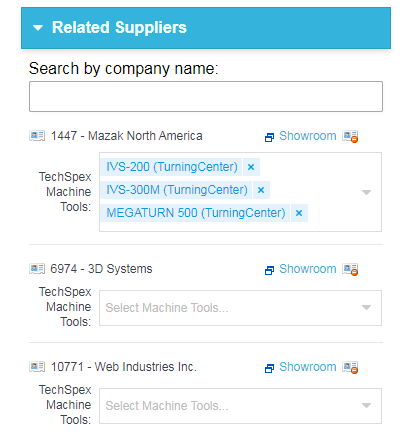
Within the contentEdit page (EdApp), editors can now map TechSpex machine tools to the content item. These are additional tree-selectors narrowed per supplier.
Left/Right Floated Sidebar Templates & MagicLine
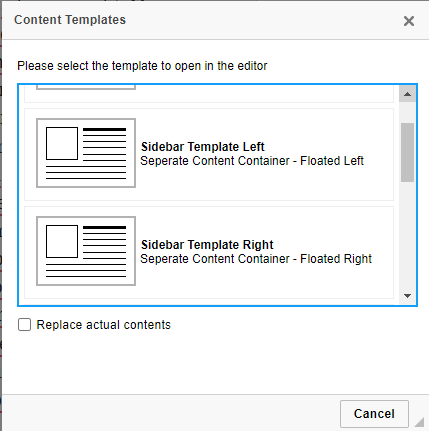
Two new templates were added to the WYSIWYG templates section. These are additional versions of the sidebar template, but will be floated left or right (Similar to Images).

Along with this update, I also added an easy button for "MagicLine" to the WYSIWYG menu, rather than only the auto magicLine that appears within the textbox. This option should make it easier to create a new paragraph outside of any divs your current selection might be stuck in.

Navigate to Comment When Clicking Annotation
While the body is Maximized, clicking a comment/annotation will now navigate to the comment's position within the body.
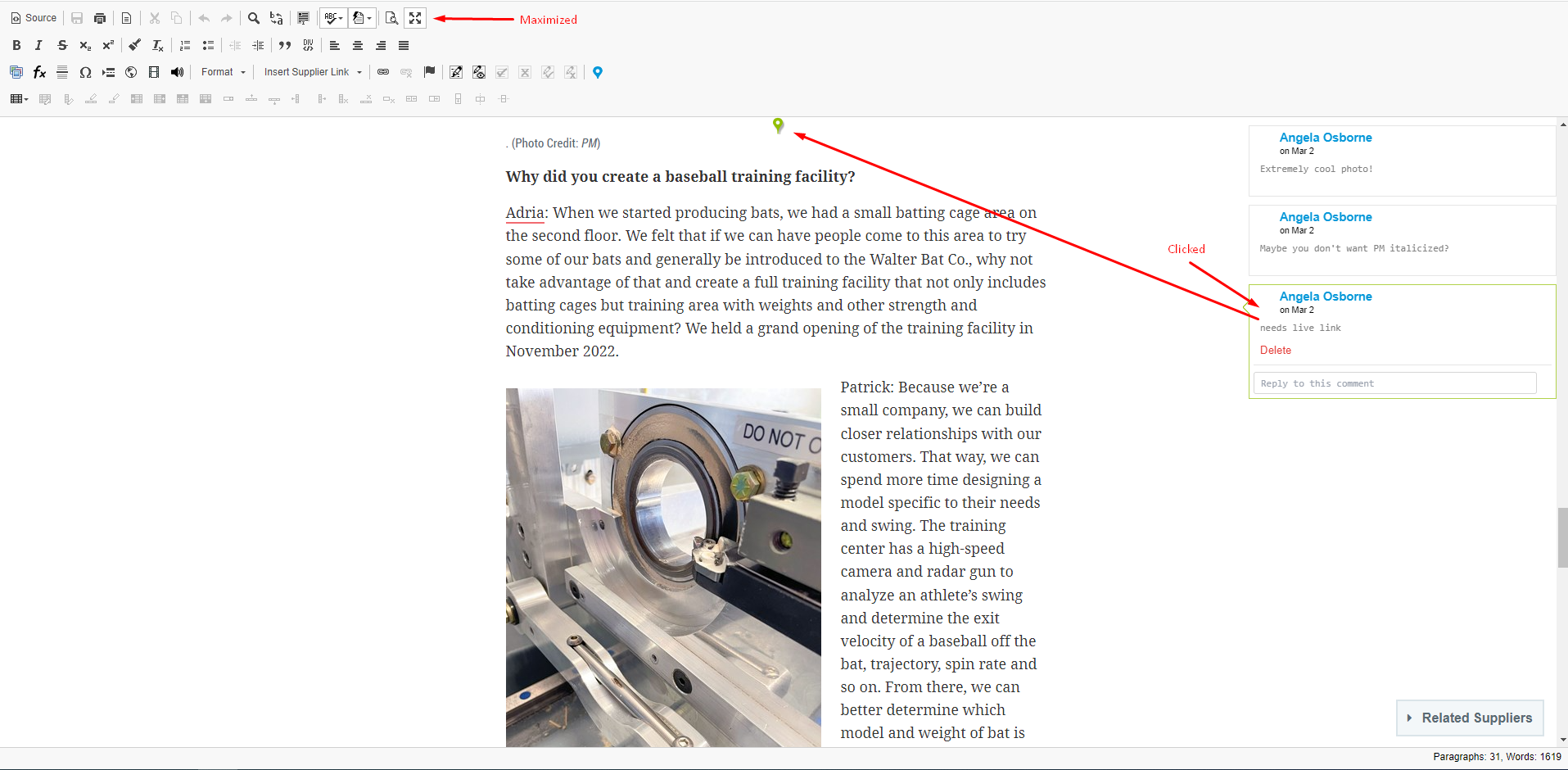
This feature is only applicable when the body is maximized as otherwise, the comment would be moved offscreen when scrolled to its placement.
ExpiryRedirectUrl
A new field has been added to the edApp right under the End Date field which will allow a redirectUrl to be given that will become active once the current time passes the content's End Date (Content Expires). This field is required if the End Date is within 10 years from the current time.
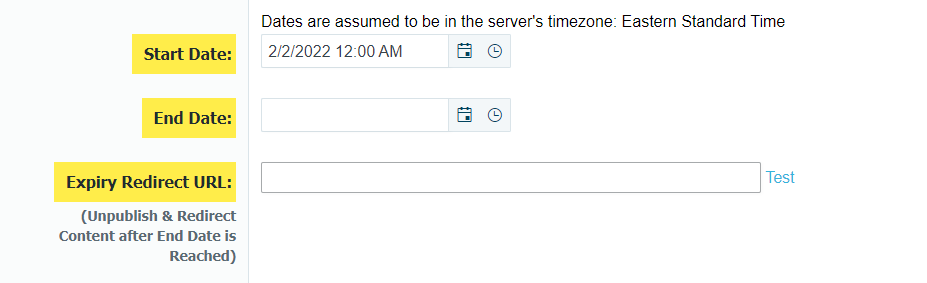
This will only come into effect once the content expires. When this happens, the content will automatically Unpublish itself and a 301 redirect will be created to the given Expiry Redirect Url. If this field does not exist, then the content will still unpublish but 404.
When the Expiry unpublishing occurs, the version history will also be updated to show this.

Unpublish and 301 Redirect
When unpublishing a content item, you can now choose to unpublish the article as a 301 redirect. Unpublish now is a dropdown where you can choose to either 404 the page or 301 redirect.
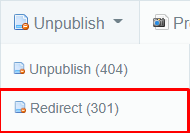
Clicking this option will open a new window that will allow you to insert the URL for which this content should now redirect to (Instead of simply returning a 404 error)
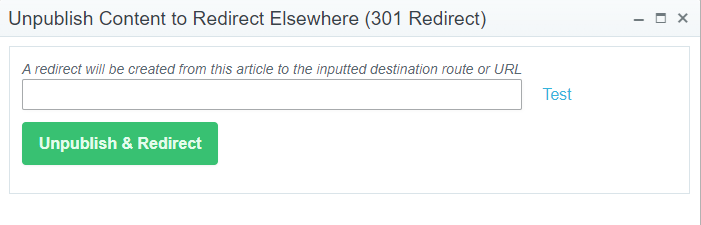
* This new option will come in handy in situations such as merging information from multiple content items into a single one. You would want to only keep the best performing URL and then you could "Unpublish and Redirect" the other items to this URL.
* If there are any existing redirects to a content item when it is unpublished, those redirects will be updated to use the same destination that is given.
* If an unpublished article is published again, all redirects sharing the same destination as the content's current redirect will instead be mapped to this content and the content will no longer redirect. Be sure to clear your browser cache!
Distribute Preselection from Editorial App
 Tom Gobich
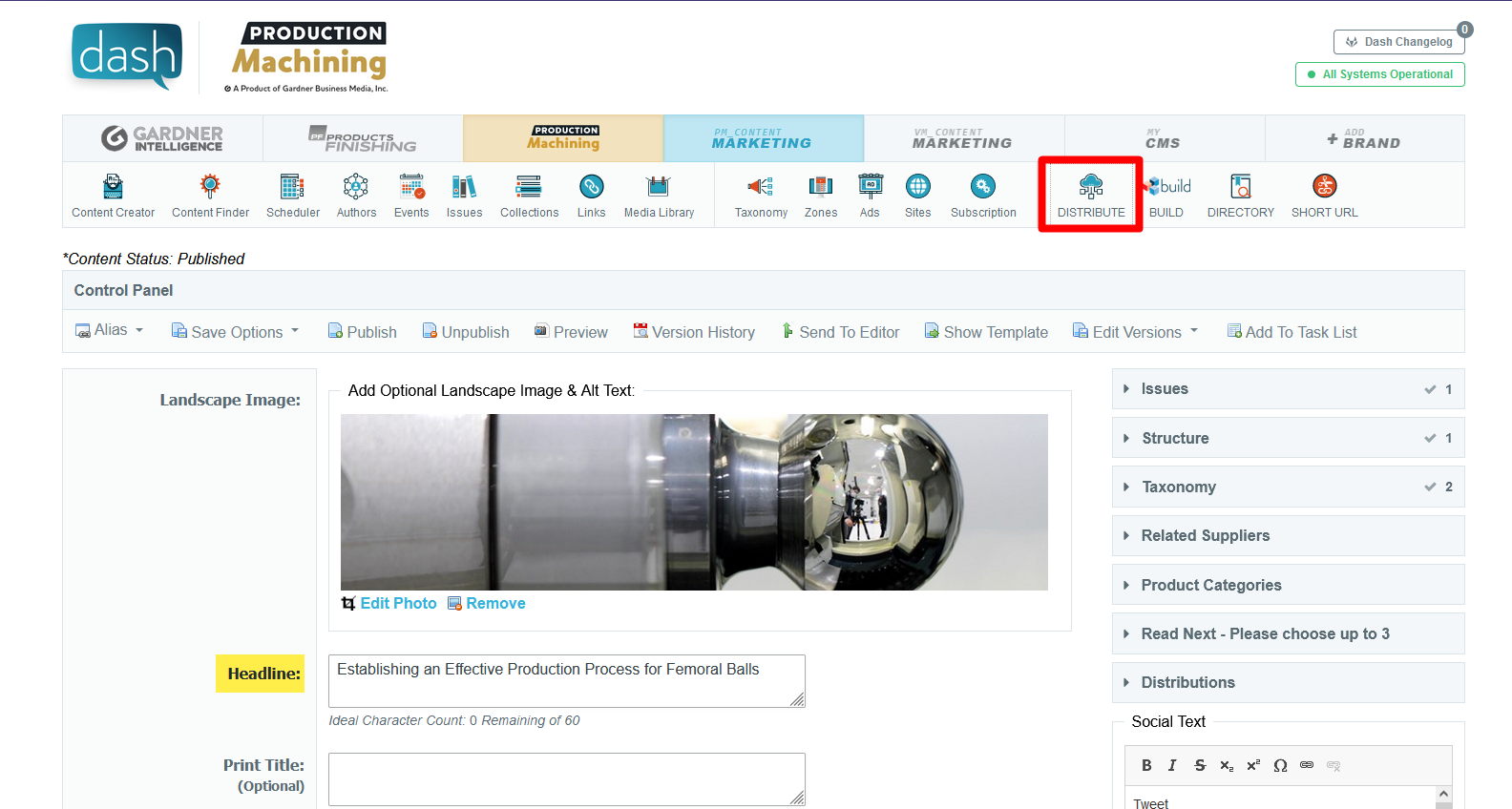
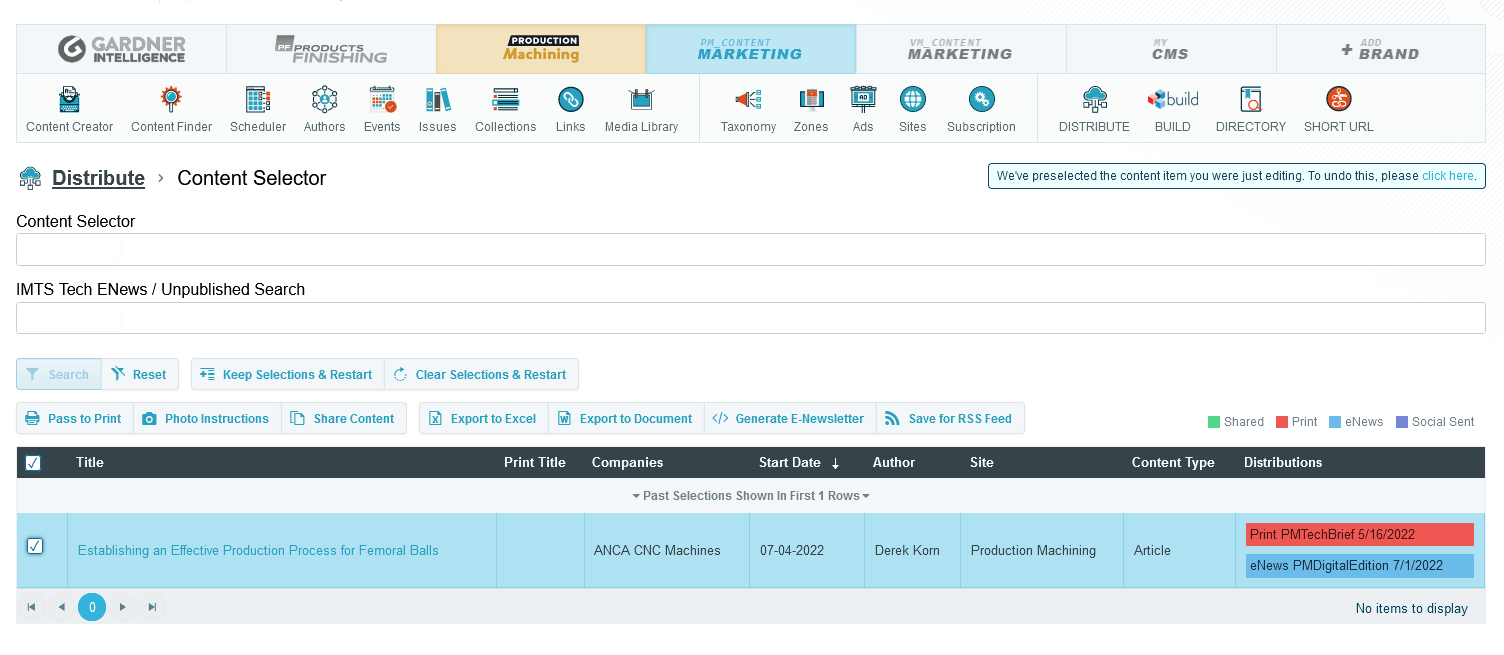
When you travel to Distribute from the Editorial App, Distribute will now load up with the content item you were editing in the Editorial App preselected within the Content Selector of Distribute. From here you can either add more items to your selections or go straight into one of the inner functionalities of Distribute.
You can easily undo this preselection by clicking "Clear Selections & Restart" or clicking the call to action in the alert in the top-right corner of Distribute. This alert is only displayed when this preselection occurs.
Bulk Upload & File Size Limits
Tom Gobich
The bulk upload behavior on the Content Creator and Media Library has been altered. Previously, when you selected multiple images to upload all of the selected images would be grouped and sent up in a single request to upload. We've noticed this can result in an error due to the single request's size being too large if too many or too large of images are uploaded.
As a remedy the bulk upload will now upload each selected file individually. The only change you should notice here is that multiple files will no longer be grouped but rather listed individually.
Additionally, we've also added validation onto our uploads, including the bulk upload, to restrict image sizes to 5MB or less. We've noticed some images between 15MB to 30MB being uploaded, which is very large for a single image upload.
Data Tables Have Been Updated
Tom Gobich
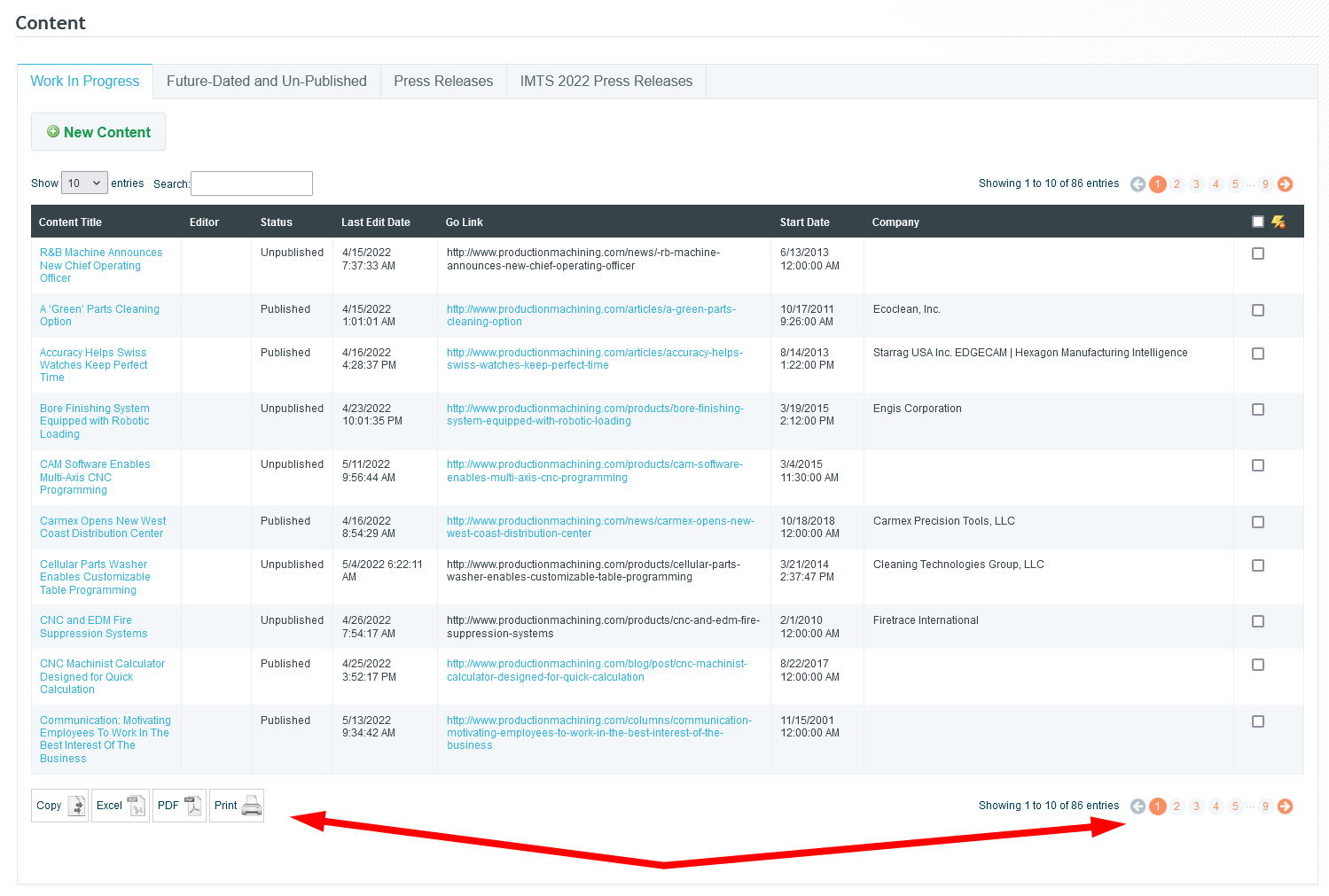
Today we updated the library we use to put together data tables within Dash. These tables are those you find on the Content Work In Progress page and the like. Prior to today, we used a very outdated version of this library that was still attempting to utilize flash. Because of this the copy, excel, and pdf buttons didn't work and haven't since flash was removed by browsers a few years ago.
With the updated version of this library, flash is no longer required for these buttons. As a result, these buttons are now back up and working. This updated version also brings improved pagination, so you can directly jump to a particular page and even the last page.
This update impacts the following Dash pages:
- Content - Work In Progress & Future-Dated tabs
- Content Finder
- Authors
- Collections
Content Keywords
You may have noticed a new category in the edApp for Content Keywords. These keywords are not being used for SEO purposes, but rather are being used to pull related content for continuous scroll.
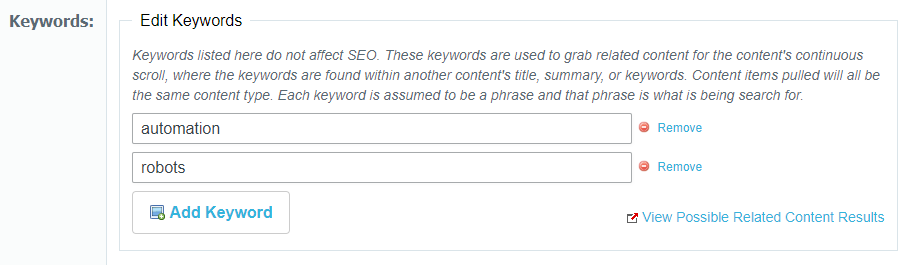
Each keyword is a search phrase that will use a cloud search to find matches in other contents' title, summary, or keywords. Less matches will be found as a phrase becomes more specific. For example, using "Wind Power" as a keyword will search for exactly "Wind Power" and not "Wind" or "Power" separately. All keywords have the same weighting and the content pulled will be based on relevancy score and how recent the content is.
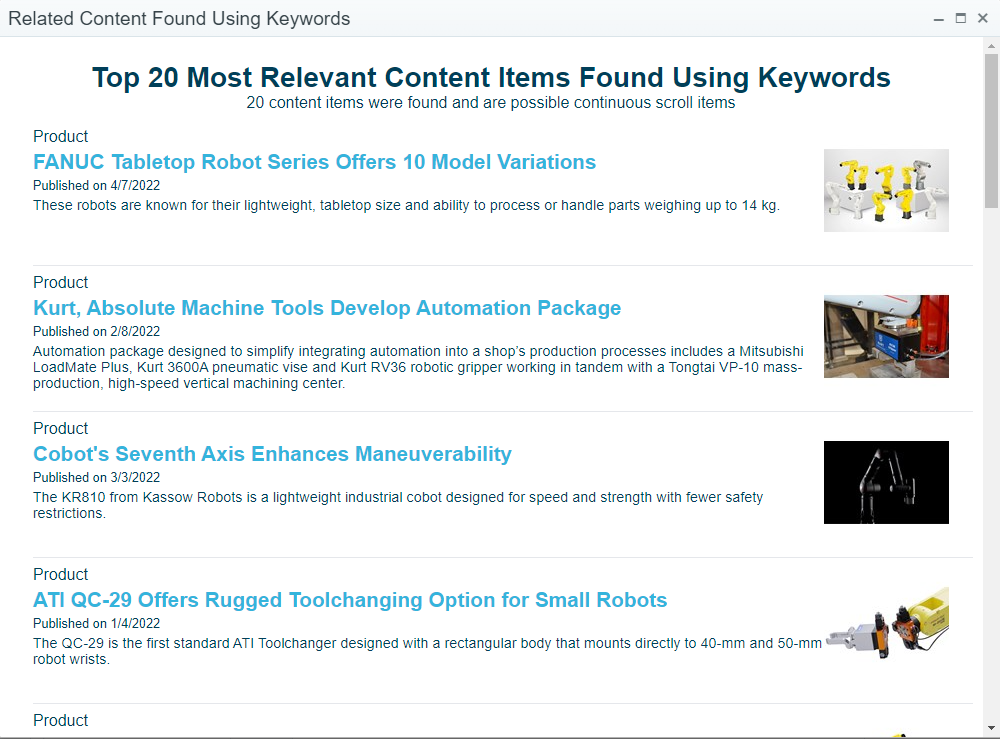
The "View Possible Related Content Results" button is meant to aid with creating keywords. This will display a popup to show the top 20 Cloud Search results using the current keywords and content type. The continuous scroll content items used will be taken randomly from these top 20 results. The results only include currently published content from the last 2 years and whose starting date has already passed. Below is an example using the "Automation" and "Robots" as keywords and Products as the content type:
File System Links, File System Images, & Url Defense Links
Tom Gobich
File System Links & Images
File system urls begin with `file://`. These urls are paths to locations on your computer and are not accessible to anyone but you. Recently, we've seen instances where these file system urls have been used for both links and images. For images, we believe this is happening from copy/pasting or dragging & dropping images from the file system or Outlook emails directly into the content editor. For links, we believe the same thing is happening but with file system & Outlook locations.
In an attempt to prevent links and images from being inserted into content in the future we're adding checks for such urls when copying & pasting and dragging & dropping into the content editor.
With this now in place, when links are dragged & dropped or copy/pasted into the content editor and they go to a file system url, the link will be removed and just the text for the link will remain. Images on the other hand containing a file system url will be completely removed, as there's nothing usable to keep.
When this does happen, warnings will be displayed in the top-right corner of your screen. An example of one of these warnings is below. Checks for file system links have been added to the content creator and build.
Url Defense Links
In addition to file system links, we've also noticed Proofpoint Url Defense links have been getting used as well. Links received within emails are routed through Proofpoint so that Proofpoint can verify the url is safe before it reaches you in your inbox. In some cases, these have been entered for links and advertisements by copy & pasting links from emails. Below is what one of these links looks like.
https://urldefense.com/v3/__https://mastip.com/ __;!!KeUdynatPK5p!_1244v...
When clicked, these do take the user to the correct final destination, however, Google Amp considers these links invalid. Additionally, these links may expire after some time and stop working.
To prevent either of these situations, we've added a link check for these url defense links. When one of these links is entered, we'll strip out the Proofpoint Url Defense portion and replace it with the underlying link. When this happens, you'll be notified by a warning in the top-right corner of your screen. Please verify the link's correctness when this does occur.
This check has been added to the content creator, build, and the ad create/update form.
Dash Image Library Search Bar
The Image Library Search Bar will now be reset to an empty state when opening/re-opening the Image Library. The Search Bar will also now have a blue background color when the Image Library is filtering on the search Bar. These changes were added to hopefully solve an issue where the image library looks empty after inserting a few images, which I believe was caused by unintentional filtering.
The below pages were impacted by this bug, though it was most prominent on the content creator. The bug has now also been fixed on each of the below pages.
- Content creator
- Event editor
- Issue editor
- Build editor
- Link editor
- Zone editor
Dash Image Library Select/Insert Bug Fixed
Tom Gobich
A bug impacting performance and the ability to insert images into the content body within the content editor has now been fixed. This fix also resolves the issue where the image caption was getting applied numerous times.
The issue stemmed from a new "change" handler getting bound to the Image Library every time it opened. This bug has been around for a while and copy/pasted throughout Dash but only recently began manifesting itself when a new feature was introduced to save and load alt text, caption, and other image information as this slightly slowed down the "change" handler's completion time.
The below pages were impacted by this bug, though it was most prominent on the content creator. The bug has now also been fixed on each of the below pages.
- Content creator
- Event editor
- Issue editor
- Build editor
- Link editor
-
Zone editor
Content Creator Updates
Tom Gobich
Updates to the Content Creator have been in the works and finally went out this morning. Most of the updates are improvements to the code, its structure, speed, and re-usability. Minimal changes should be visibly noticeable, however, you should notice a decent improvement in page load speed.
This update focused on the right-hand side of the page (taxonomies, structure, related suppliers, issues, etc). This portion has been re-written and the tree-based structures have been moved off the page load and now will load on request. They'll also begin to load if you hover over the card for a short period of time as this shows an "intent to click". For example, if you hover over issues, but don't click it, after 200ms the tree contents for being to load in.
One thing you may notice is in regards to the issues section. Previously this section was loading all issues for all brands, which was a significant slow-down in terms of load times. The issues section will now only load the past three years for each brand. For example, this means currently only 2022, 2021, and 2020 will be displayed.
I've spent a good chunk of time testing these updates to ensure they don't break anything, however, should you experience any issues please let me know and I'll see to it that the issue(s) are fixed!
Content Anchor Tool
Tom Gobich
The anchor link tool has been added back into the main content's WYSIWYG editor (flag icon). To use it follow the below steps.
1. Select the text you'd like to be the scroll target.
2. Click on the flag tool, shown below next to the link tool.
3. Enter a name for the anchor target. Keep the name simplistic. It should be alphanumeric and CapitalCase, camelCase, or snake_case.
4. Click "OK". Note that a flag icon will be added next to the text within the content body.
5. Select the text you'd like to link to the scroll target.
6. Click the link tool.
7. Change the "Link Type" to "Link to anchor in the text"
8. Select the anchor by name or element id.
9. Click "OK". Note that the text will appear as a normal link. Once clicked, however, instead of changing the page the user will be scrolled to the link's selected scroll target.
Removing Image Library Delete Action
For the foreseeable future, the delete option for images and folders in the image Library has been removed. This functionality has been removed as there have been instances of images being moved or removed causing the images to disappear from the content containing them.
Starting this February (earlier this month), direct access to the CDN has also been limited to avoid these issues. This can only fix images "Disappearing" for those images/folders added to the image Library after these updates. Prior to these changes, Images that have already been moved or deleted from their desired location may still be seen in content due to being cached. These cached images may last for up to 120 days, though will eventually return "404 - File or directory not found."
Image Library
A fix has been deployed for the Image Browser for WYSIWYG editors and the Media Library. One issue that has been fixed was the creation of multiple instances of the Image Library. This was causing actions, like delete, to be performed on images other than what was currently selected. For delete, the popup now will only be displayed for the currently selected image. Another issue that was fixed was the create and delete options for images failing to properly complete. This caused them to be repeatedly performed, sometimes reverting previous actions. Both of these issues have been fixed and the Image Library is working as intended.
Cursor Jumping & Undo/Redo Scroll Position
Tom Gobich
A fix was deployed this afternoon to fix an issue with the Change Detection plugin on the WYSIWYG editor. This issue occurred when you double-clicked a word to select it with change detection enabled and started typing to replace that word. In some cases, the cursor was jumping to the end position of a sibling element within the paragraph. The cursor will now properly remain at the start or end boundary of the word being replaced. This fix is in place for all current and future content.
Another issue has also been fixed with the undo/redo functionality. When hitting undo or redo, the content would flash and you could end up at a completely different portion of the document then you were before. With this fix, the content will still flash since undo/redo works off stored snapshots of the entire document. However, the position is now properly maintained and you're no longer jumped to random portions of the document. This fix will apply to all future content. This issue was found when investigating another issue with the undo/redo functionality where in rare cases undo would go back more than one step. We're still investigating that issue.
Photo Credit
Tom Gobich
Starting today, when you add a photo credit onto an image used with the WYSIWYG body copy, that photo credit value, alt text, and caption will be stored within the database. If you then select that same photo from the Image Library, the previously used photo credit, alt text, and caption will auto-populate into the Add Image fields.
When an image has the photo credit populated from the last usage, a blue alert will be displayed just underneath the image preview. If you change the photo credit, alt text, or caption for this usage the new values will be stored for the next time the image is used. If you remove the auto-populated photo credit value completely, the previous photo credit will remain intact for the next usage.
Also, a fix has been applied when the WYSIWYG editor is in fullscreen. Previously you had to move the modal upwards to reach the "Insert Image" button, even with scrolling inside the modal. Now, when you select an image the modal will recenter itself, making the max-height applied to the editor more useful and allowing the Insert Image button to be reached without having to move the modal upwards.
Fullscreen Related Supplier Management
Tom Gobich
When the content editor WYSIWYG is fullscreen, the related suppliers panel is now visible and pinned to the bottom-right corner of your screen. This allows you to add and remove related suppliers without leaving fullscreen. Changes here will then immediately reflect within the "Insert Supplier Link" dropdown in the WYSIWYG toolbar. When you exit fullscreen in the editor the related suppliers panel will return back to its original position.
Content Pin to Home Top
Tom Gobich
You can now pin a content item to the top of the home page for a period of time by specifying a future date to the "Pin to Home Top Until" field. When left empty, the content will be populated onto the home page as usual. When the pin to top date is in the future the most future-dated content item for this field will be pinned to the top of the home page. This applies to both content with and without a landscape image. When the content has a landscape image it will pin to the top in the first landscape position, otherwise, it'll pin to the top for the normal content.
When the pin to top date either enters the past or a new content item is posted with a pin to top date that's further into the future, the content item will drop back into the normal flow as though the pin to top date wasn't specified.
Dash Change Detection Was Including Edits When Copy/Pasting
Tom Gobich
Previously, when change detection was enabled in the body WYSIWYG editor, if you removed or altered characters then copy/pasted the text the removed characters would be pasted back in. This issue is now fixed and the removed characters will be excluded from the pasted text.
Image Full-Resolution Lightbox
Tom Gobich
When adding an image into a content body, there is a new option to "Include Full-Resolution Popup". When "yes" is selected the image will be inserted with code to enable the full-resolution popup. When "no" is selected the image will be inserted same as always.
Note "yes" should only be selected if you've uploaded a
high-resolution image.
Note the popup will not work if the image contains a link, as the link will
take the user to the link's destination.
Here is where you can find the option to add a full-resolution lightbox when adding an image to your article
Here's an example of how the lightbox will appear when activated within the article.
Auto-Detect & Pull First 3:2 Image
Tom Gobich
Starting for images placed in content bodies July 9th onward. When pulling an image from the body copy for usage on pages like the home page the system will now search for and use the first 3:2 aspect ratio image, or one very close to 3:2. So, if a 2:1 image is displayed first in the article followed by a 3:2 image halfway down the page the 3:2 image will be used instead of the 2:1 image.
This only applies for images place July 9th and onward because images will now have their native dimensions data applied to the image which is what's used to determine the aspect ratio.
In this example, note the image being pulled when linking to the article, which is boxed in red, is the third image to display within the actual article. This image is the one that's pulled because it's the first image within the article that's a 3:2 aspect ratio.
 Powered by ChangeCrab